1Plan a location and trail in advance
Members can suggest a location from Team. Organisers review the suggestion before adding it to the planning pool. A quick analysis is an estimate, not a guarantee of suitability or access rights.
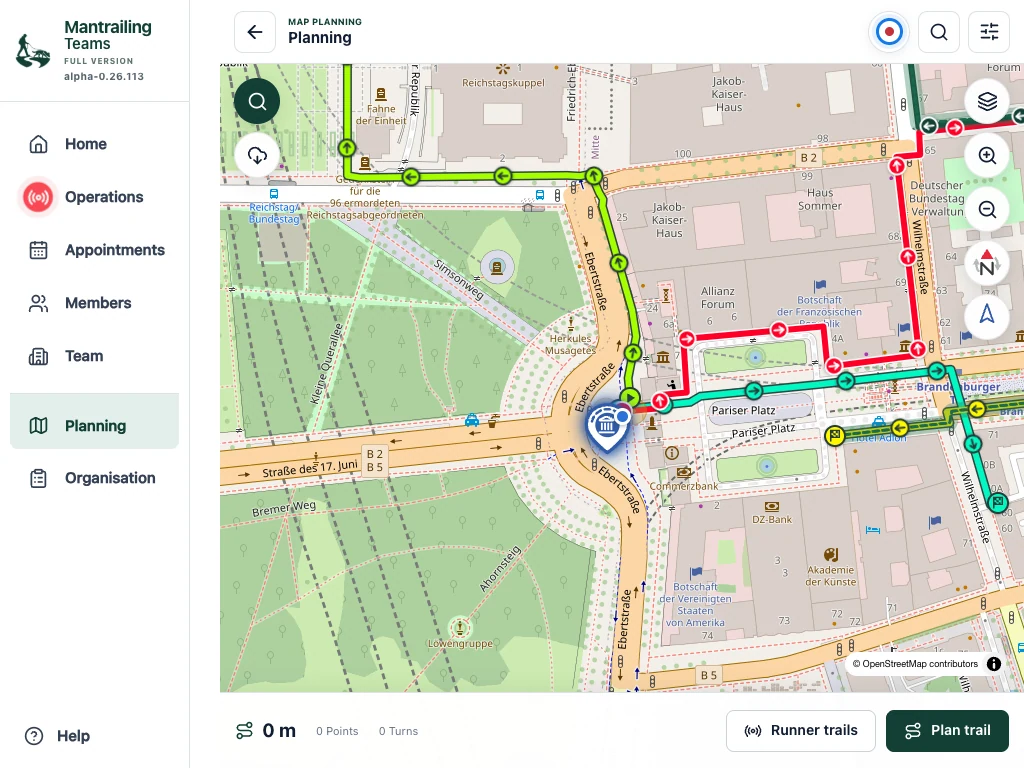
- Open Planning and find the training area. Choose an existing location or create one.
- Place the meeting point deliberately and check its address and map position. Complete the available location details.
- Create a trail at the location and draw the planned route. Save it with a distinctive name.
- Check the saved route and its visibility. A planned trail describes your preparation; the later recording shows the path actually walked.
2Create operation blocks for an appointment
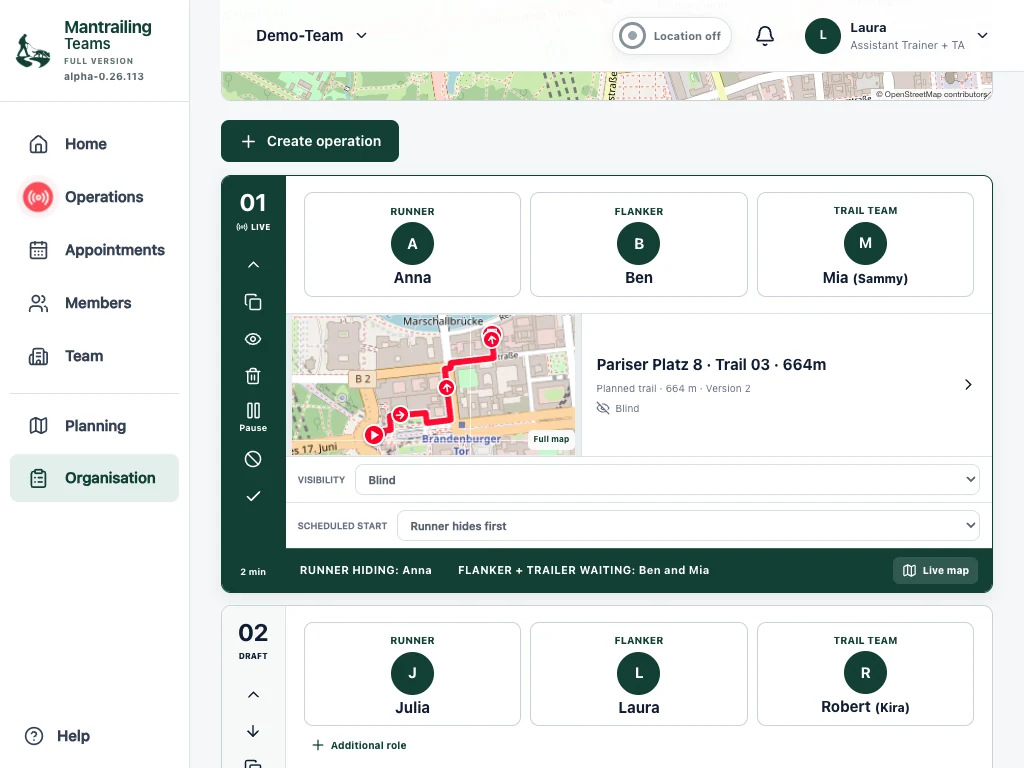
- Open Organisation and select the appointment. Check the meeting point at the top.
- Create an operation block for each planned run.
- Assign the hidden person, flanker and trail team. Choose the dog for the trail team.
- Assign a suitable trail. Check visibility and the starting sequence, including whether the hidden person walks first or is already hidden.
3Plan additional people and diversion trails
Use a block’s additional functions to add hidden people or companions. A distraction is another scent or route that can divert the dog from its search task. The app assigns a planned human decoy as an additional trail layer with their own row: choose their route or whether they are already hidden. They are not the main target.
Check assignments before every call. A person can have a different role in a later block. Their permanent team role and their assignment in this operation are separate.
4Prepare, call and follow the operation
The operation table is a read-only overview. Use Organisation to change assignments.
- Check names, dog, trail and starting order in the block.
- Use the release or call offered for its current state. This turns the preparation into a specific assignment for the participants.
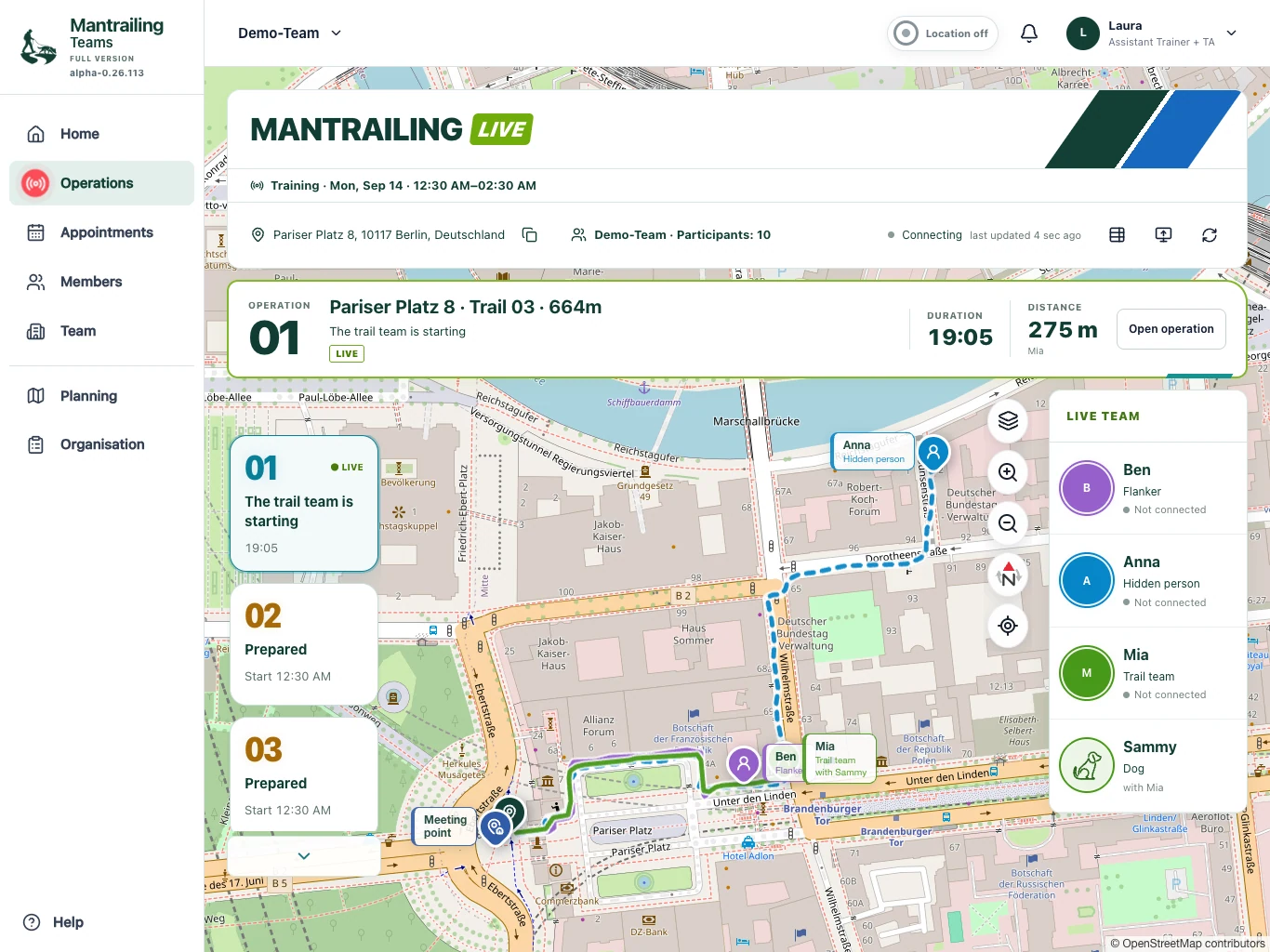
- Follow progress in Operations. The hidden person reports arrival, then the search team can begin according to the release.
- Pause or finish the block according to what actually happened. An abort must not be reported as a successful find.
5Debrief and reuse
After completion, open operation evaluation. Where suitable recordings exist, compare the hidden-person and search trails and use playback. GPS proximity, distance and duration support a debrief but do not replace professional assessment of scent work.
Training diaries, progress and examination records complement evaluation. Preserve important trails through the available functions and check your team’s retention rules.
These tablet screenshots show Demo-Team and its Berlin trails. The booking view shows upgrading from the base to the full version.