1Create an appointment
Trainers, co-trainers and team admins can organise appointments. Members see their available appointments and respond to participation.
- Open Appointments and choose Create appointment.
- Enter a clear title and choose the appropriate type, such as training, event or examination.
- Set the start, end and, if needed, an earlier meeting time. Check dates carefully for sessions crossing midnight.
- Select the location or meeting point. Add instructions such as equipment or travel information.
- Set capacity, waiting list, registration mode and any groups. Save and review the appointment.
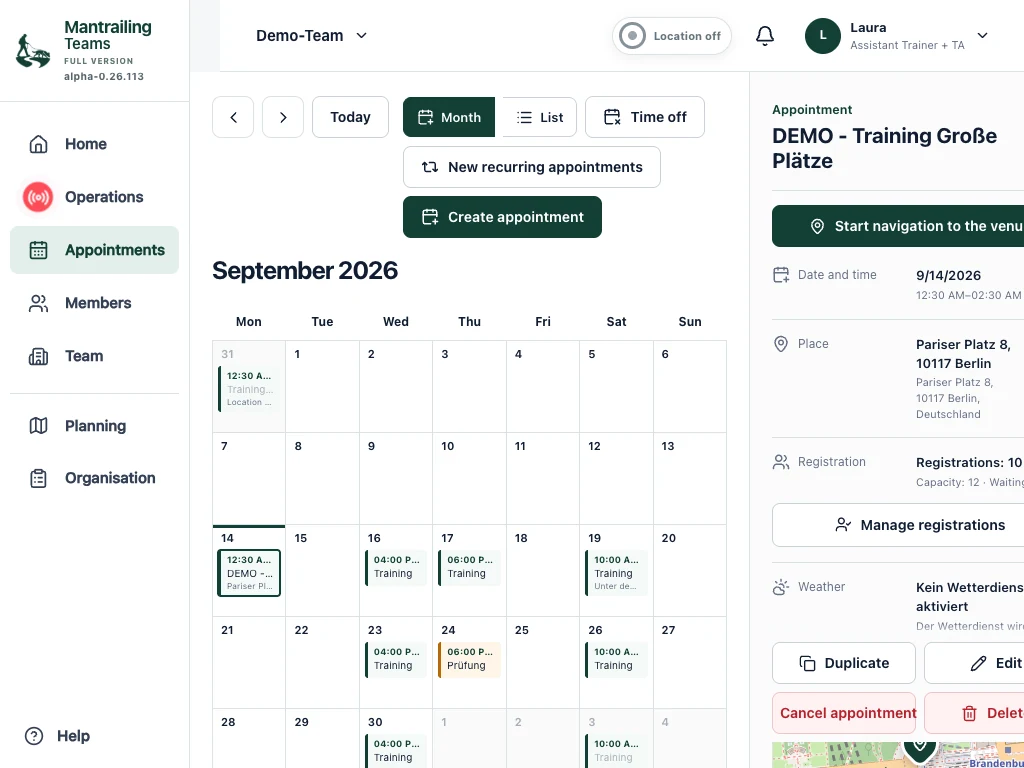
2Change the time, place or instructions
Past appointments cannot be freely edited like future ones. Contact the organisers or support about incorrect historical details.
- Open the existing appointment and its editing option.
- Change the relevant details. For a series, check whether the change affects only this appointment or future ones too.
- Save and reopen the appointment. Double-check the start, end and meeting point.
- Review participation and tell the team about important last-minute changes. Do not assume everyone reads notifications immediately.
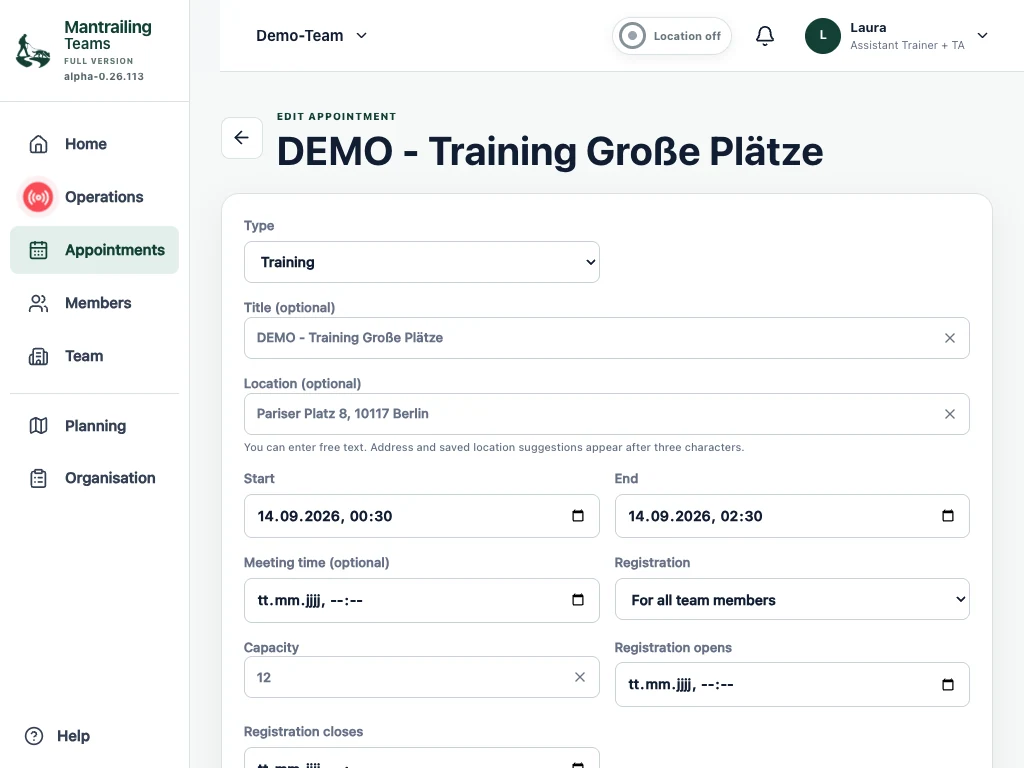
3Recurring appointments and cancellations
Use New appointment series to prepare regular sessions. Check the frequency, date range and shared information before saving. Edit exceptions on the individual appointment.
If a session will not take place, use Cancel appointment and give a reason. Cancellation communicates the change. Deletion is a separate action and should not replace informing participants.
4Accept or decline as a participant
- Open the appointment from Appointments or the home page.
- Read the time, meeting point and instructions. Register with the appropriate dog or decline.
- If places are full, check your waiting-list status. Joining a waiting list is not a confirmed place.
- Update your response if your plans change. Use Holiday periods to record absences.
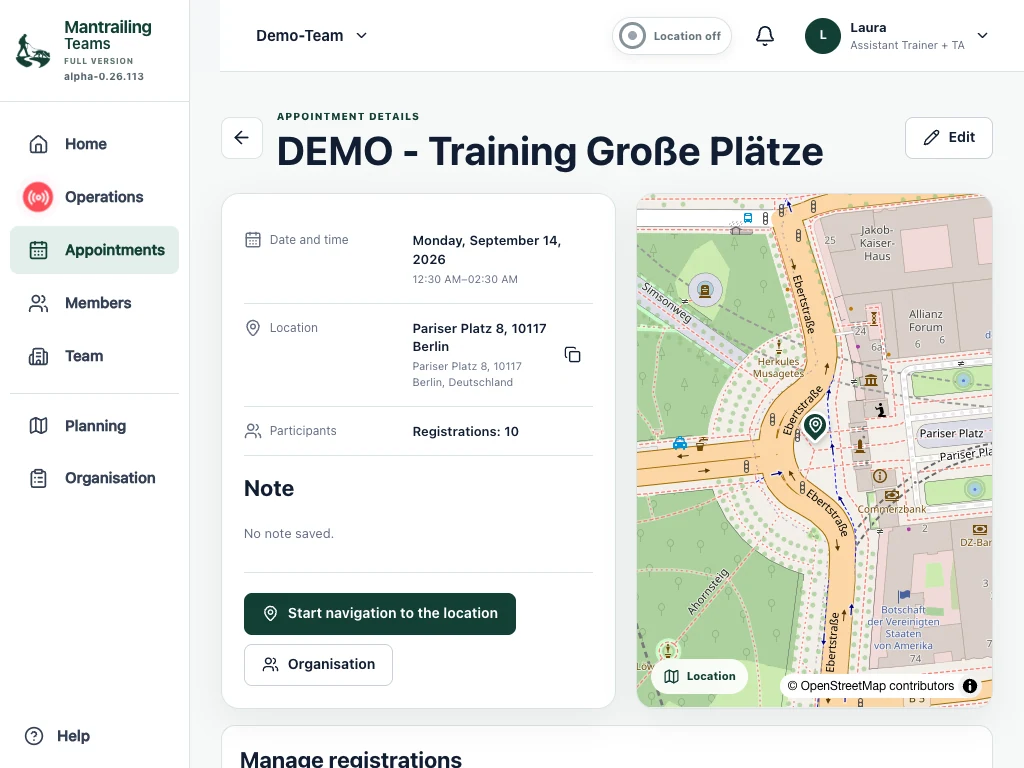
These tablet screenshots show Demo-Team and its Berlin trails. The booking view shows upgrading from the base to the full version.