1Choose your examination rulebook
Create the appointment as an examination or event as appropriate. Plan the operations and maintain the required examination details. The app supports documentation; it does not independently decide whether someone passes.
- As a team admin, open Team settings and Examination rules.
- Select an available rulebook. Check its association, title and version.
- Save the selection. Published requirements and levels are then available for the supported examination and training functions.
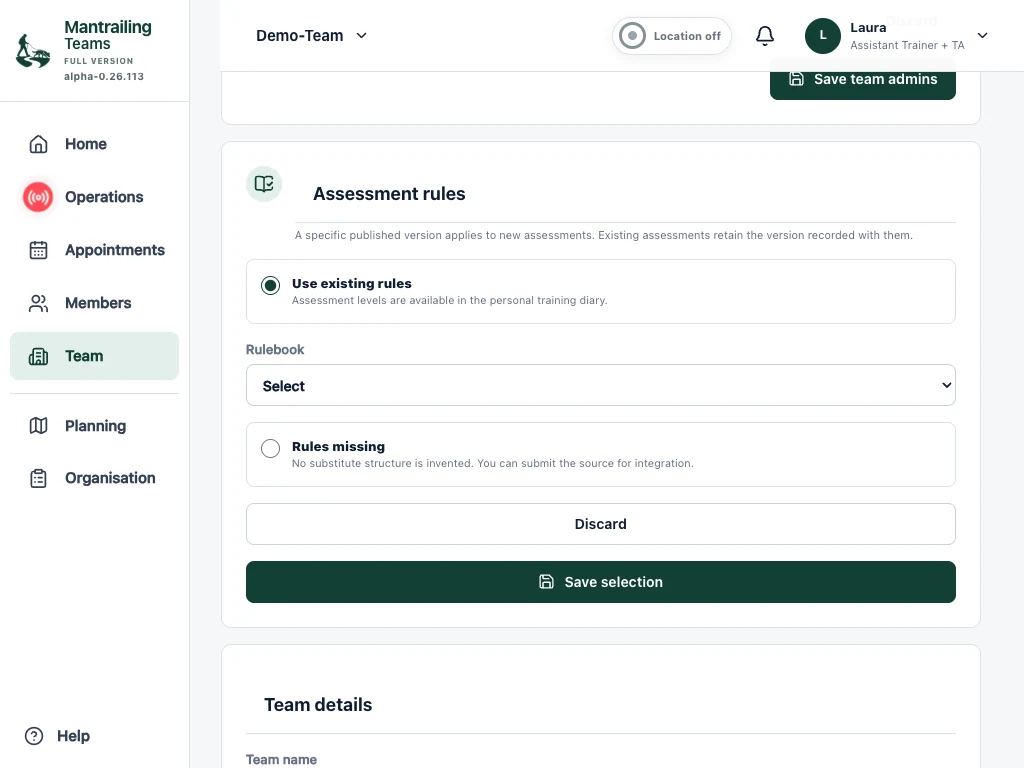
2Is your rulebook missing?
Submission does not immediately activate a finished rulebook. Until reviewed and published, it remains missing or in progress. Do not select a similar rulebook as a substitute without checking it.
- Choose the missing-rulebook option in Team settings.
- Enter the association or organisation, title and description. Include a link to the complete current rulebook if possible.
- Submit the suggestion so the material can be reviewed and the rulebook added.
- If you only have a file, contact support to arrange how to provide it. Include its version and effective date.
3Use rules and assess results professionally
Use the recorded levels and requirements for preparation and documentation. The responsible examination team assesses the actual performance.
A geometric trail comparison shows distances and route lengths, for example. It is not automatic proof of scent-work quality or compliance with an examination rulebook. Check requirements and document the professional decision.
4Invite an examiner for an appointment
Access applies only to the authorised event or examination and its displayed validity period. It does not automatically create ordinary team membership.
The reduced view shows the appointment, Operations and read-only Organisation. The operation uses the permitted flanker view, including blind rules. Examiners cannot start anything; examiner access does not request their location.
The optional Hidden person found action sets the shared find status. It is not a private examiner note or a rulebook assessment. Confirm only an actual find.
- As an authorised organiser, open Organisation and select an appointment of type Event or Examination.
- Choose Invite examiner, enter the name and create the invitation link.
- Copy the link immediately and send it only to that person. The full link is shown only once.
- The examiner opens the link. Connect with my account attaches the invitation to an existing account; sign in first if needed.
- Further linked invitations appear in examiner access. You can revoke access in invitation management.
These tablet screenshots show Demo-Team and its Berlin trails. The booking view shows upgrading from the base to the full version.