How can we help?
Practical guides and answers for your training.
Guides
Step by stepTaking part in live operations
An operation at the Brandenburg Gate: follow Anna, Ben and Mia with Sammy from the call to the find.
Open guide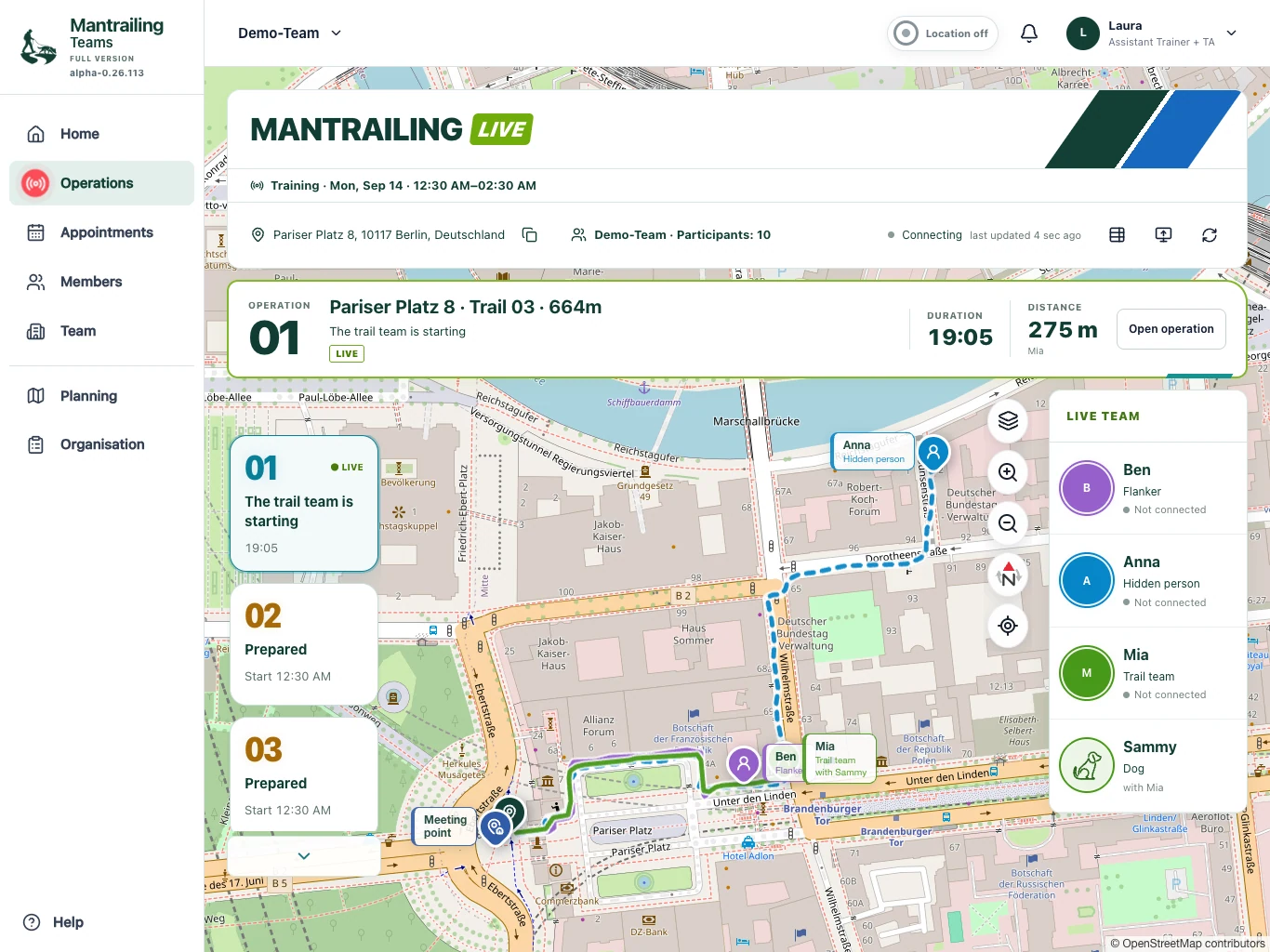
Mantrailing glossary
From scent articles to trail layers: mantrailing vocabulary, abbreviations and the terms used in Mantrailing Teams, explained simply.
Create and update appointments
Arrange a session, manage participation and communicate changes clearly.
Organise operations
Prepare locations and trails, assign roles and call operation blocks.
Manage your team
Members, roles, groups and shared team functions explained.
Subscriptions and costs
What applies to the whole team, what remains free and how to manage a subscription.
Examination rules and examiner mode
Choose a rulebook, submit missing rules and use event-specific examiner access.
Location and privacy
When positions are collected, how you control this and who can see which information.
Frequently asked questions
Does every member need a subscription?
No. The subscription applies to the team and its administration manages booking. Members do not pay separately for the app. Any club or training fees charged by your team are separate.
Read more: Subscriptions and costsCan I join several teams?
Yes. You need approved access in each team. Use the team selector to switch. Separate accounts of your own can be linked using the private connection code and Connect with more teams. Roles, data and subscriptions remain separate per team.
Read more: Manage your teamWhat remains available in the base version?
Appointments, calendar and participation, free trail planning, members, groups and the team overview are included. Your role still determines what you may change. Live recording, operation organisation and full-version evaluations are not part of the base version.
Read more: Subscriptions and costsWhen is my location collected?
The open phone app makes sparse checks around relevant appointments. Precise collection can run during an active nearby operation. Deliberate map and location functions can request a position too. A started recording saves waypoints; showing a position and recording a trail are not the same.
Read more: Location and privacyHow do members, trainers, co-trainers and team admins differ?
Members participate and use their permitted views. Trainers and co-trainers organise training, plan trails and assign operations. Team admins also manage team access, settings and subscriptions. Hidden person, flanker and trail team are assignments for an individual operation.
Read more: Manage your teamHow do I accept or decline an appointment?
Open Appointments, choose the session and respond. Select your dog if needed. Check whether you have a confirmed place or are on the waiting list. Update your response promptly if you cannot attend.
Read more: Create and update appointmentsWhere do I see who is running and when it is my turn?
Operations shows numbered blocks and their current statuses. The operation table lists assigned names and roles. When your assignment is called, the call button opens your personal view. A prepared block is not yet permission to start.
Read more: Taking part in live operationsCan I present operations on a monitor?
Yes. Use the monitor icon in Operations, for example at events or examinations. Check the visible names, positions and trails first. A monitor does not extend permissions and should not reveal confidential or examination-related hiding places.
Read more: Taking part in live operationsWhy can the trail team not see the hidden-person trail?
Depending on visibility, this is intentional so the route does not give away the search. Your own path can still be recorded. Double Blind also hides the reference from the flanker.
Read more: Taking part in live operationsHow do I invite members?
As a team admin, open Members and its invitations. Choose the role and access period, then create the invitation. After acceptance, check the status. Team settings may require additional approval.
Read more: Manage your teamCan I appoint additional team admins?
Yes. Select the responsible people in Team settings and save. At least one team admin must remain. This responsibility supplements the member’s professional role.
Read more: Manage your teamWhat are groups and time-limited access for?
Groups help organise beginners and advanced participants, for example, and target appointments. Time-limited access ends on its specified date. Choose it deliberately for temporary participation and check the role and expiry.
Read more: Manage your teamWhich team functions are available?
The team overview combines activity, members, dogs, progress and results, with location suggestions and groups. Depending on plan and role, training diaries, equipment reservations and confirmed transfers of locations and trails between teams are also available.
Read more: Manage your teamHow do I select our examination rules?
As a team admin, open Team settings and Examination rules. Select the rulebook, check its association and version and save. The app supports preparation and documentation; the examination team assesses performance.
Read more: Examination rules and examiner modeCan we provide a missing rulebook?
Yes. Select the missing-rulebook option and enter the organisation, title, description and preferably a link to the complete current rules. The submission is reviewed so the rules can be added. Contact support to arrange delivery of a file.
Read more: Examination rules and examiner modeHow does examiner mode work?
Organisers invite an examiner from Organisation for an event or examination. The link opens reduced examiner access and can be connected to an existing account. Examiners see only authorised appointments, operations and read-only organisation. They cannot start anything and do not share their own location. The optional find confirmation updates the shared find status.
Read more: Examination rules and examiner modeHow do I prepare locations and trails?
Open Planning, select or create the location and check its meeting point. Draw the trail and save it with a clear name and suitable visibility. Later, assign it to an appointment’s operation block in Organisation.
Read more: Organise operationsHow do I fill and start an operation block?
Select the appointment in Organisation and create a block. Assign the hidden person, flanker and trail team with its dog. Check the trail, visibility and starting sequence, then use the offered release or call. Follow progress in Operations.
Read more: Organise operationsHow do I plan a diversion?
Assign a planned decoy as an additional trail layer with their own route and starting sequence, or mark them as already hidden. They are not the main target or merely a companion. The broader training term also includes other distracting scents or routes.
Read more: Organise operationsHow do I change an appointment or series?
Open the appointment’s editing view, change time, meeting point or instructions and save. For a series, deliberately choose whether only this appointment or future ones are affected. Use cancellation for a session that will not happen and inform the team.
Read more: Create and update appointmentsCan the base version be used free indefinitely?
The current base plan costs 0 € and has no usage time limit. You do not need a paid subscription to continue using it. The full-version trial, however, is time-limited.
Read more: Subscriptions and costsWhat does the full version cost and add?
Currently 10.00 € per month or 100.00 € per year per team. It adds live operations, recordings, evaluations, training diaries, examinations, import and equipment management, among other functions. The guide explains the scope; the actual booking offer is binding.
Read more: Subscriptions and costsWhat must a team admin do to keep full-version access?
Check the subscription term and arrange continuation before it expires. The online assistant is currently a preview and does not complete a purchase. Contact support to arrange continuation. Selecting a preview option does not extend access.
Read more: Subscriptions and costsCan I use PayPal, credit card or direct debit?
These methods are intended, but online checkout is not yet enabled. A credit card may be offered as a PayPal funding source; direct in-app card booking is not available yet. Discuss direct debit with support. Never send bank or card details in a general support message.
Read more: Subscriptions and costsDo we lose data when switching to the base version?
Not simply because of the plan change, although full-version functions and some evaluations become inaccessible. Independent retention rules still apply, including normal deletion of evaluated runner recordings after 30 days. This is not a promise that all data is retained forever.
Read more: Subscriptions and costsWhere can I manage billing details, documents and vouchers?
Team admins find these in subscription management. Maintain the billing contact, open existing documents beside payments and redeem vouchers in the designated field. Contact support if something is missing.
Read more: Subscriptions and costsHow is European data protection addressed?
Our processing is aligned with European data protection requirements: specific purposes, restricted access and sparing location use that you control. The privacy notice describes purposes, recipients and your rights. Use the contact form for questions.
Read more: Location and privacyIs my data sold or analysed for third-party advertising?
No. Your personal data is not shared for third-party advertising, profiling or data sales. Technically necessary services may receive the information needed for your chosen feature, such as coordinates for address search. Links, exports and monitor views you deliberately share also determine who sees your contents.
Read more: Location and privacyWhat does sparse location mean?
Around relevant appointments, the open phone app requests a low-power position about every five minutes. The window runs from one hour before the appointment to two hours after it ends. Within two kilometres and without an active assignment, sparse mode is intended. This is not continuous trail recording; opening the app can trigger extra checks.
Read more: Location and privacyHow do I switch location off?
Press and hold the location indicator and confirm switching it off. You can also change location permission in your phone settings. The next assignment may remind you that location is off. Switching off does not delete existing data.
Read more: Location and privacyDoes recording continue with the screen locked?
In the installed phone app, active precise recording can continue in the background with the necessary permissions. Device settings, power-saving and reception can affect this. Normal browser views are less reliable for background recording. Check recording and synchronisation status.
Read more: Location and privacyWhat if these FAQs do not answer my question?
Use the contact option below. Describe your question and name the team. For an app issue you can also send a report under Help & Support. Never include passwords, private connection codes or payment details.
Still looking for an answer?
Use the contact option. We are happy to help.